Summary
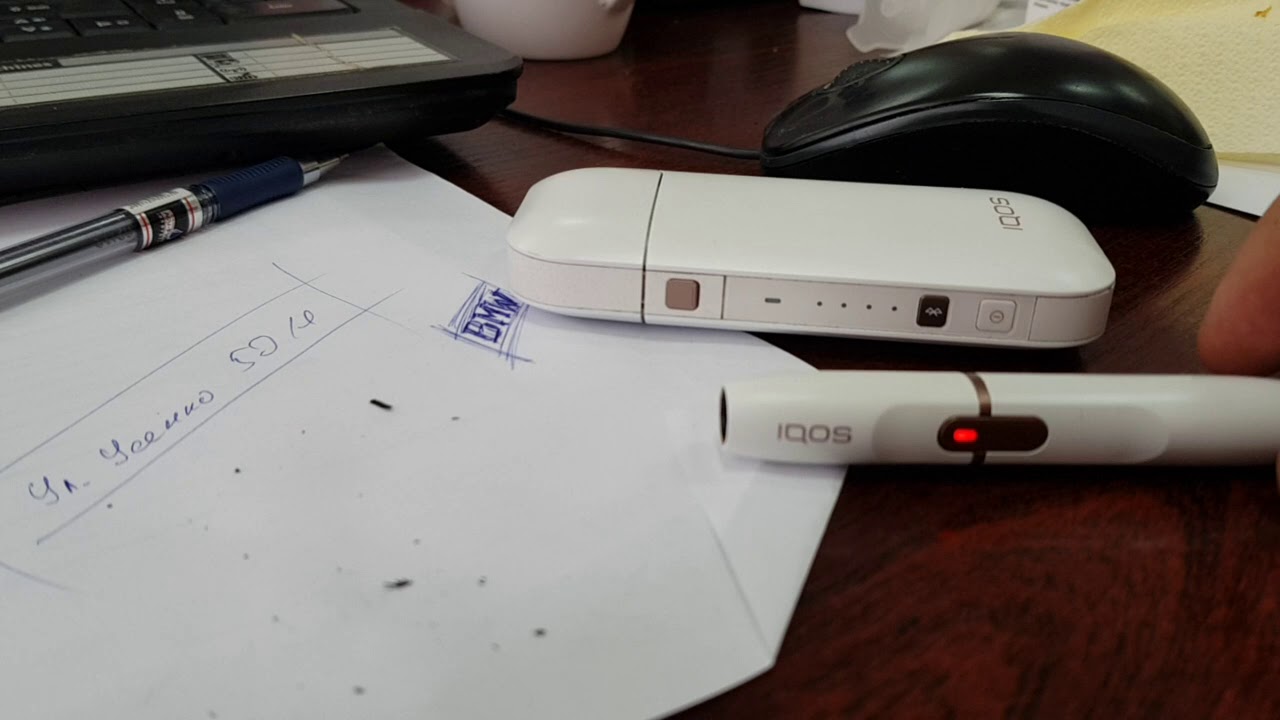
TL;DR: The video shows a quick troubleshooting walk‑through for an IQOS device that won’t power on or charge, demonstrating button presses, stick insertion, and a reset attempt.
Verdict: SKIM — the steps are straightforward and brief, useful for anyone facing the same issue but not a deep dive.
Key Takeaways
- Press and hold the power button to try turning the device on.
- Insert the IQOS stick (heater) fully; incomplete insertion prevents activation.
- If the device still won’t charge, open the back cover and press the small reset button.
- Close the cover securely; the device should then begin charging.
- Re‑try the power‑on sequence after resetting to confirm the fix.
Insights
- A simple reset (pressing the hidden button) often resolves charging glitches without needing a new charger.
- The device may appear “off” if the stick isn’t seated correctly, highlighting the importance of checking the physical connection first.
Key Topics
- IQOS power‑on procedure
- Troubleshooting charging failures
- Quick reset technique
Key Moments
0:07 - Demonstrates pressing and holding the power button to attempt activation.
0:26 - Shows the device still not responding and moves to open the back cover.
0:42 - Performs the reset button press and reports that the device finally begins charging.
Notable Quotes
"ой как не заряжается" (“Oh, it’s not charging”)
Best For
IQOS users who are experiencing a non‑responsive or non‑charging device.
Action Items
- Follow the exact button‑hold and stick‑insertion steps shown.
- Open the back, press the hidden reset button, close the cover, and test charging again.
- If the issue persists, consider checking the charger or contacting support.
Community Discussion
What Viewers Think
Overall Sentiment: Positive · Consensus: Most viewers appreciated the troubleshooting steps and reported that their devices began charging again, though a few noted that the holder sometimes failed to power up.
What People Liked
Common Complaints
Interesting Takes
Verdict
The community largely found the video helpful, with many viewers reporting that their devices resumed charging after following the advice. While a minority experienced persistent holder issues, the overall reception was enthusiastic and appreciative. The guide sparked both practical success and a few light‑hearted remarks, indicating that it resonated well while leaving room for clearer instructions on troubleshooting a non‑charging holder.